How to Claim Your Political Party on UshindiOS: A Step-by-Step Guide
Authorised party officials can claim their party on UshindiOS. Every step, from finding your party to your first sign-in, with real screenshots.
By UshindiOS Editorial Team · · 10 min read
Every registered political party in Kenya can have a home on UshindiOS. Many already appear in our party directory, ready for someone from the party to take charge. Claiming your party is how an authorised official asks for the keys to that home: an administrator account for the party's own workspace, where you set up your team, your territory and your public page.
This guide walks you through the whole journey, with screenshots of every step. It covers what you need before you start, how to submit your claim, what UshindiOS does to check it, the messages you will receive, and what you will see when you first sign in.
The screenshots in this guide use a made-up party, "Example Democratic Party (Sample)", and a made-up official, "Amina Example". None of the details are real.
Why claim your party?
A party profile in the directory is just a listing. Once it is claimed and approved, your party gets its own private workspace on UshindiOS, at its own web address. As the party administrator you can:
invite colleagues and give each of them a role and an area;
set up the party's national campaign structure: departments, teams and positions;
prepare and publish your party's public page;
see your setup progress on one dashboard.
Claiming is about access, not ownership. Approval gives you administrator access to your party's workspace on UshindiOS. It does not register a party, change who leads it, or replace anything the Office of the Registrar of Political Parties (ORPP) decides.
Before you begin
Claim your party only if you are authorised by the party to set it up on UshindiOS. A platform administrator checks your authority before anyone gets access, so have these ready:
A signed authority letter. It should be on the party's official letterhead, name you, say that you are authorised to set up the party's UshindiOS office, and be signed by current party officials. This is required.
A governing-body resolution, if your party has one. This is optional, but it helps.
Your national ID or passport number.
Your own email address and mobile number. Your invitation is sent to this mobile number, so use one you can access.
Documents can be PDF, JPG, PNG or WEBP, up to 5 MB each. You do not need a UshindiOS account to claim your party.
Part one: how to claim your party
Step 1: Go to UshindiOS
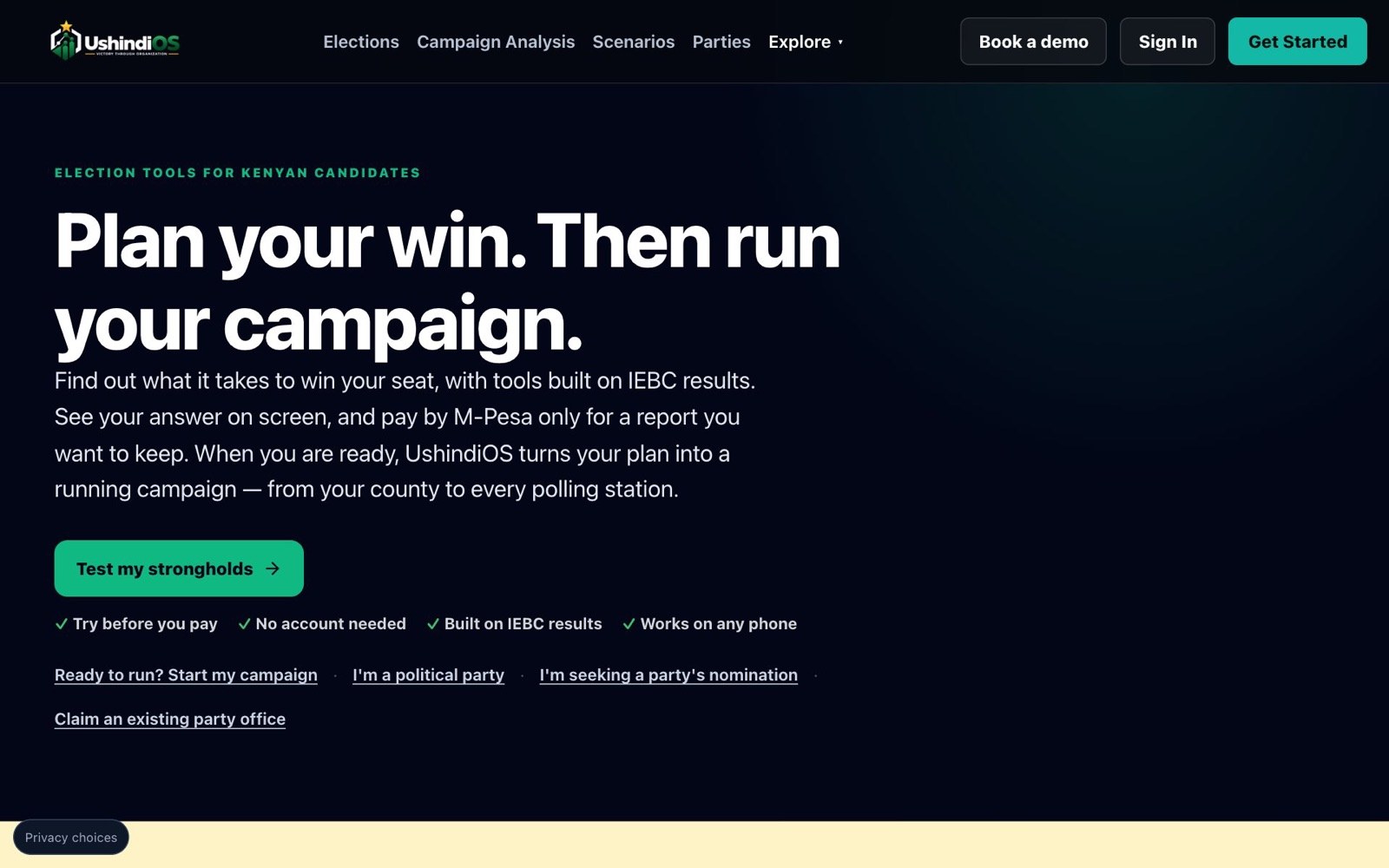
Open ushindios.com. You can reach party claiming two ways from the home page: Parties in the top menu, or the Claim an existing party office link under the main button.
Step 2: Find your party
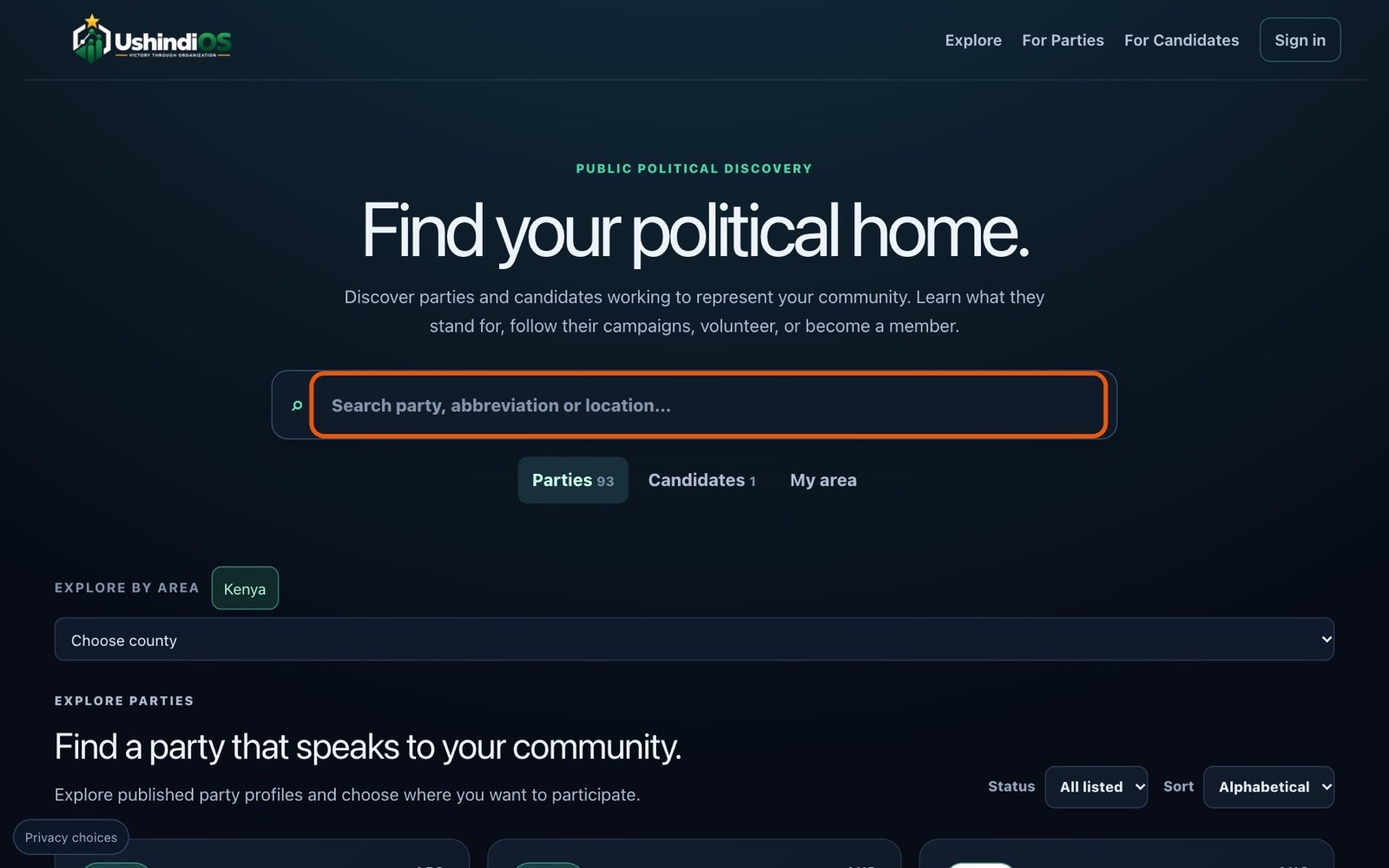
Go to Find a party. This is the public party directory, and anyone can use it without signing in. Type your party's name, abbreviation or a place into the search box.
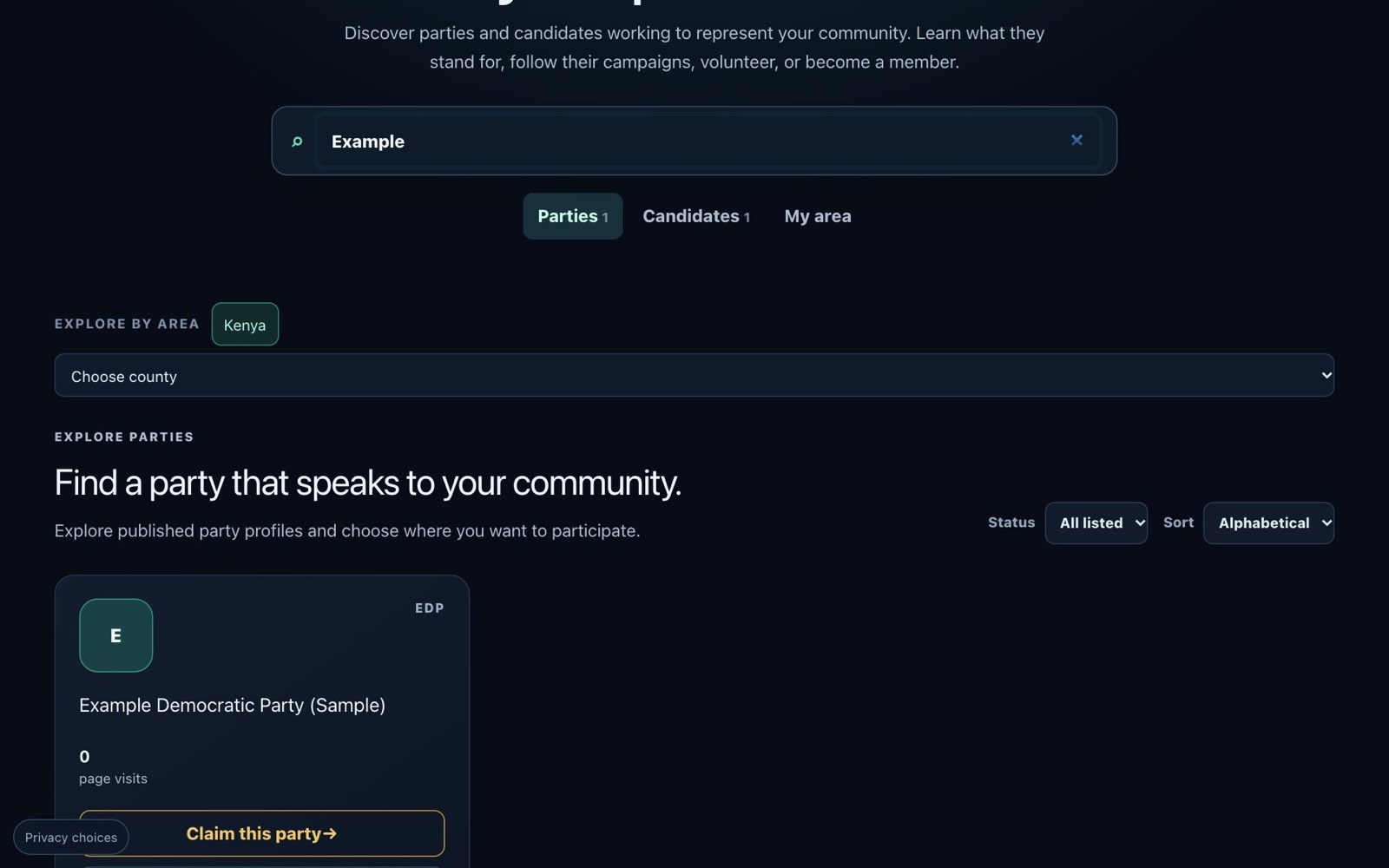
Your party appears as a card with its abbreviation.
If your party does not appear, it does not mean it is not registered: it may simply not be listed yet. Contact UshindiOS and we will help.
Step 3: Select "Claim this party"
If nobody has set up your party on UshindiOS yet, its card shows Claim this party. Select it.
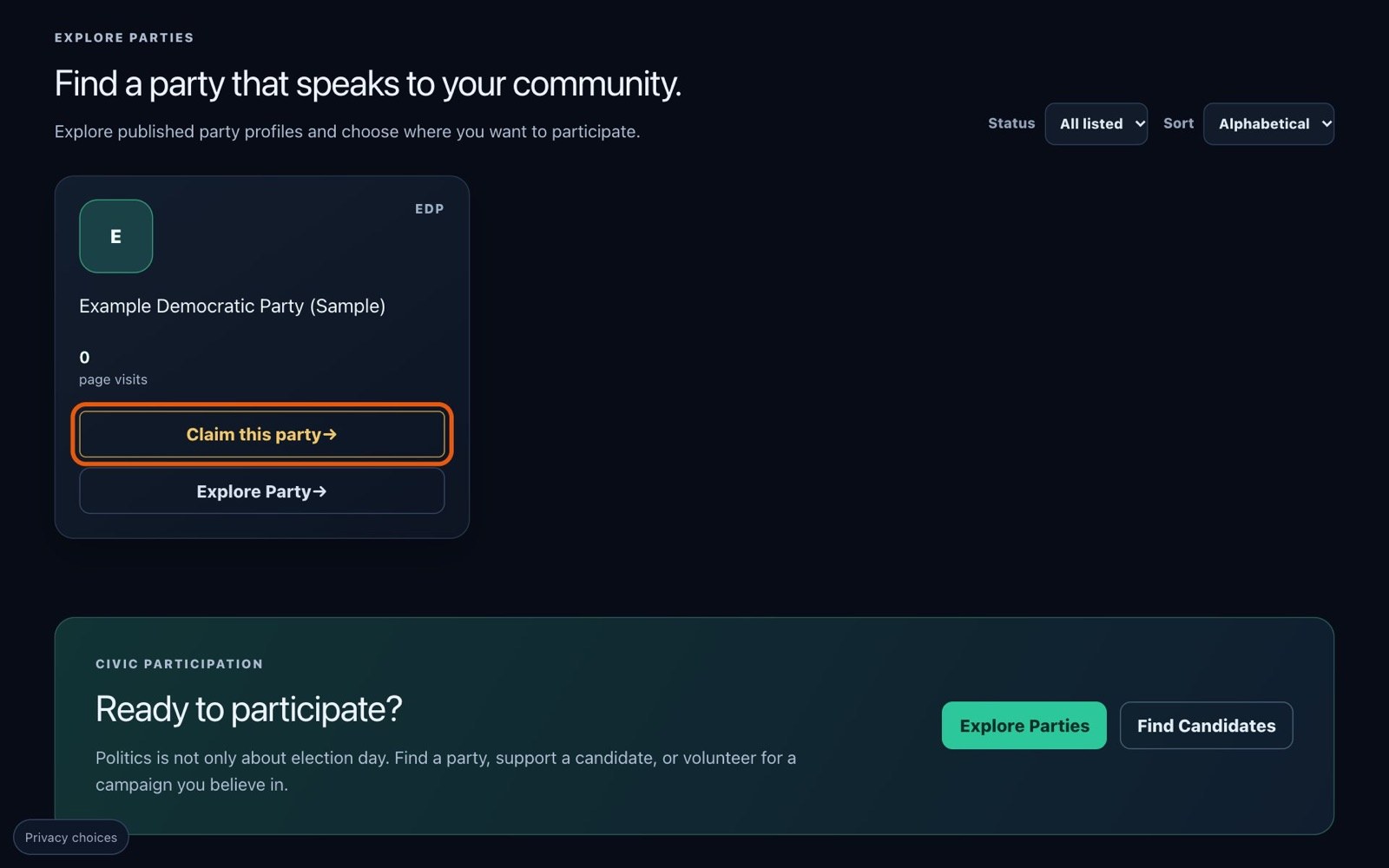
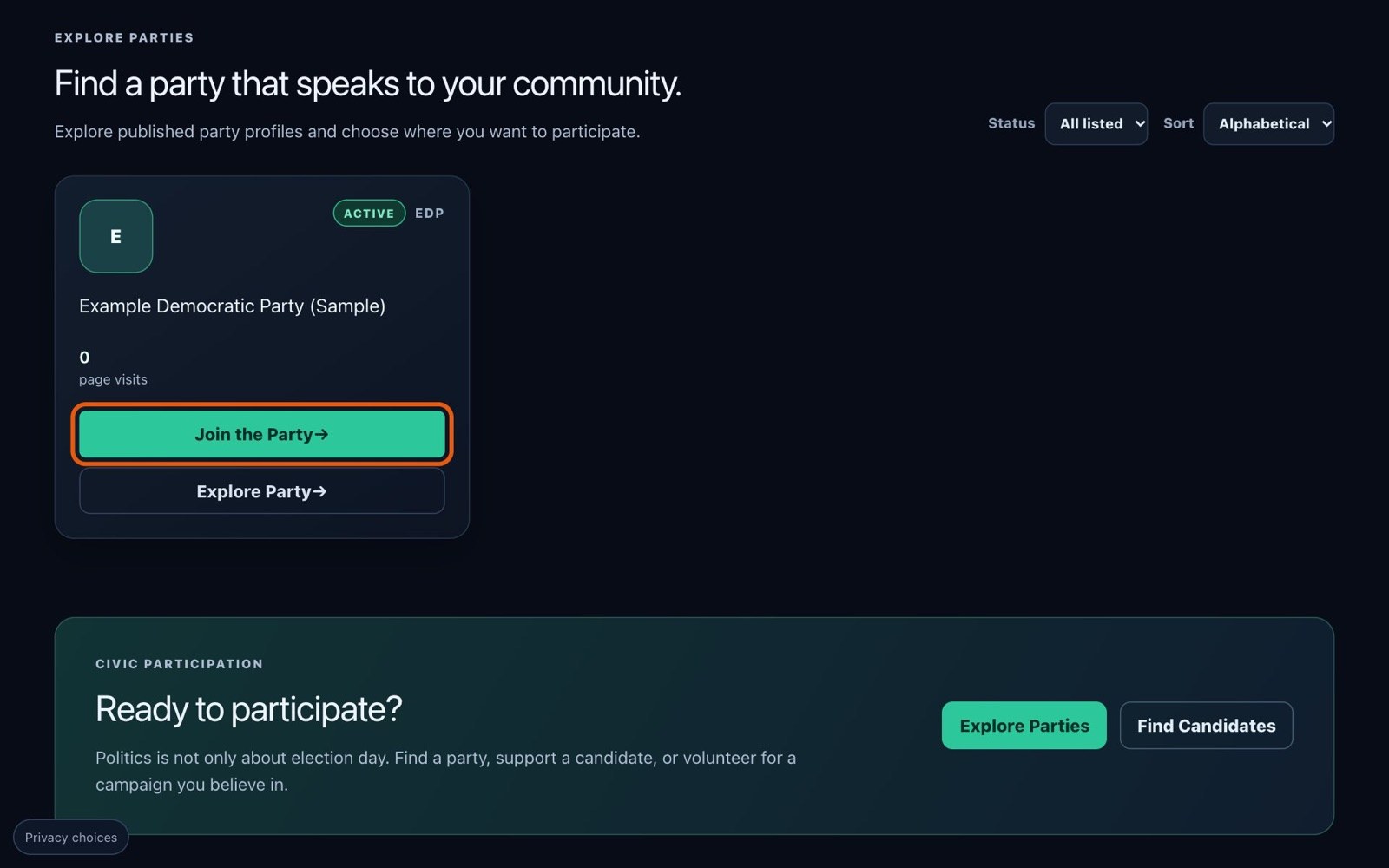
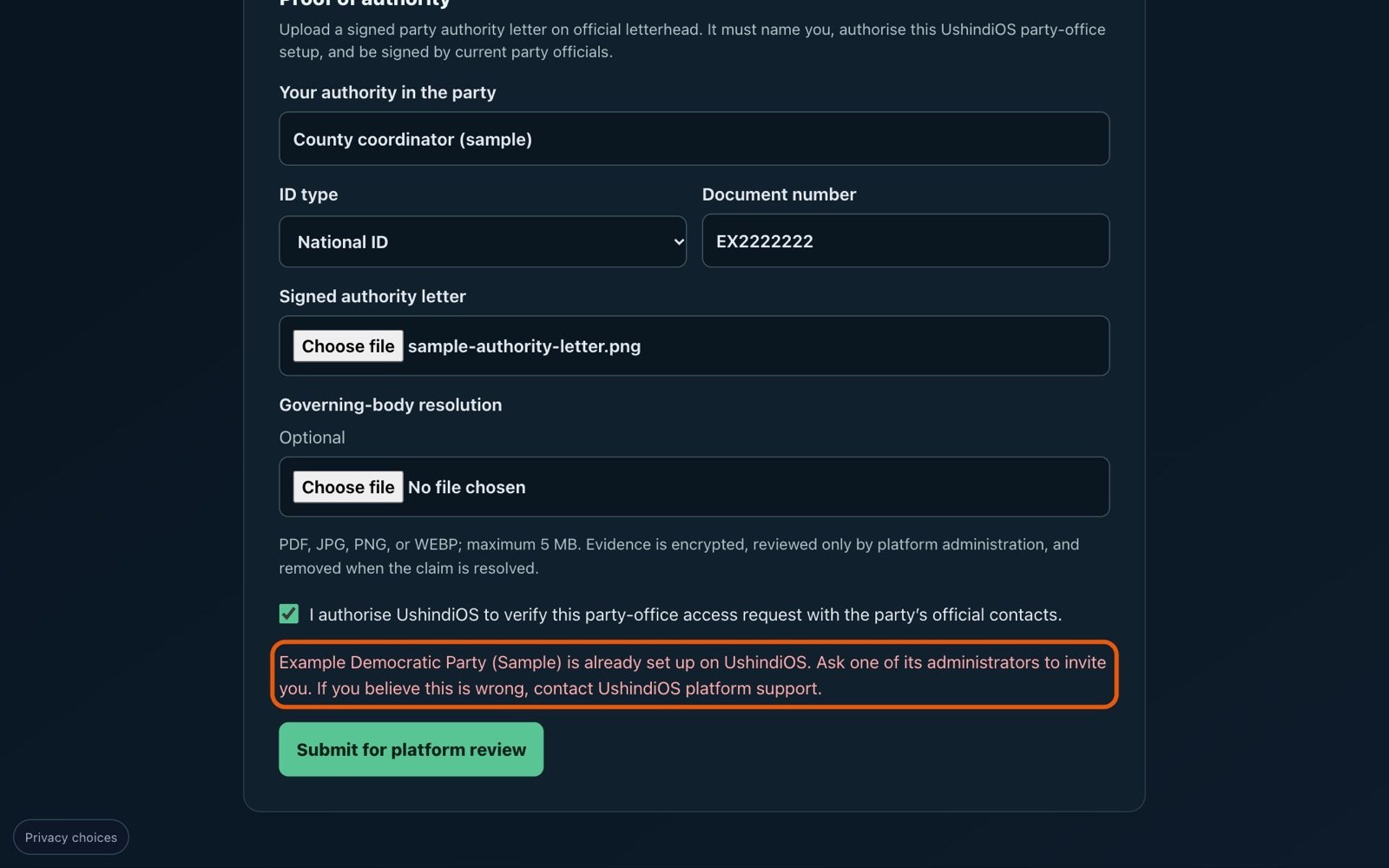
If the card shows an Active badge and Join the Party instead, your party is already set up. Ask one of your party's administrators to invite you. A new claim for a party that already has an administrator is turned down straight away, with a message telling you this.
Step 4: Tell us who you are
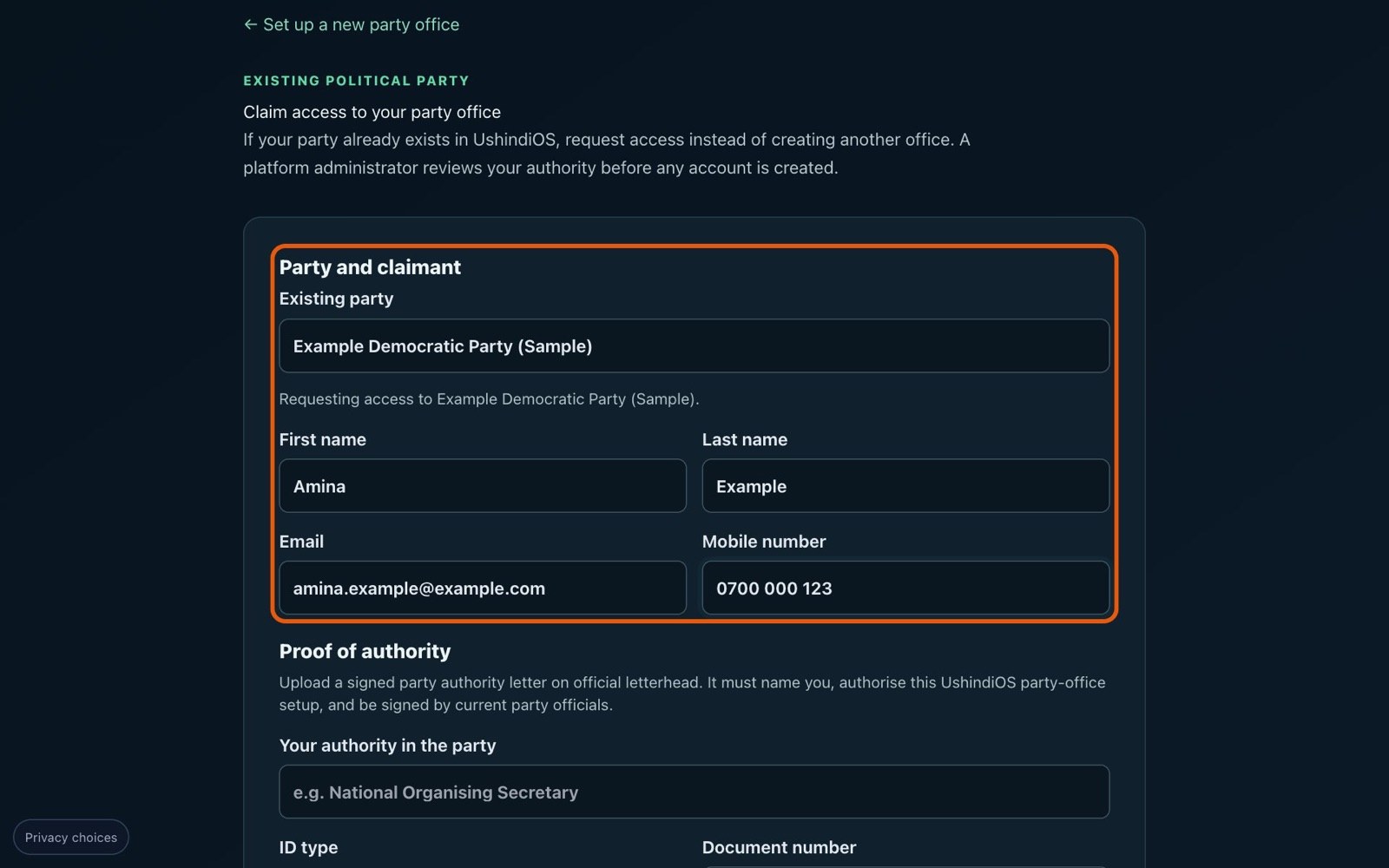
The claim form opens with your party already selected. It begins by explaining that a platform administrator will review your authority before any account is created.
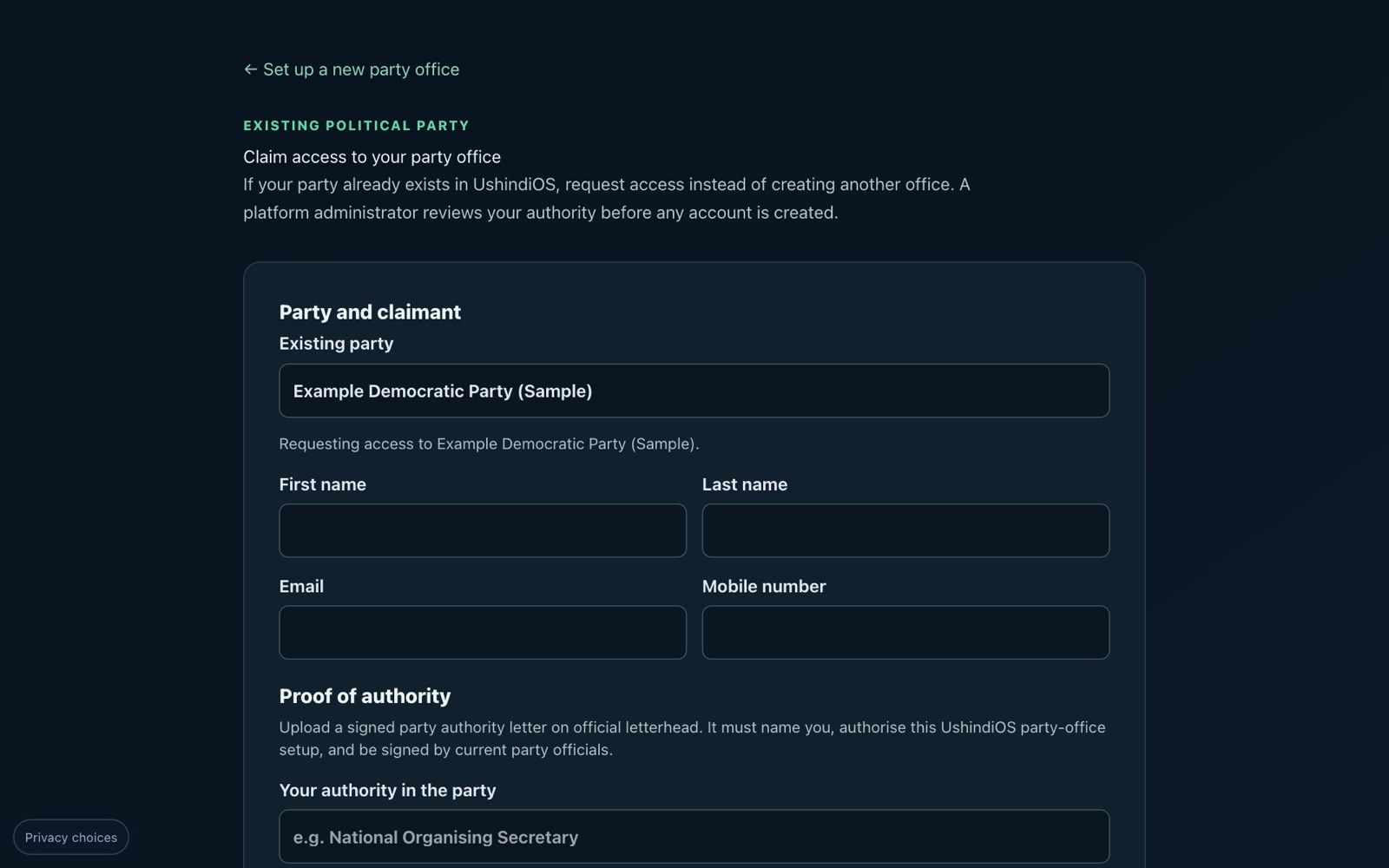
Under Party and claimant, enter your first name, last name, email and mobile number.
Step 5: Prove your authority
Under Proof of authority:
Your authority in the party: your role, for example "National Organising Secretary".
ID type and document number: your national ID or passport number. Reviewers only ever see the last four characters.
Signed authority letter: upload the letter described above.
Governing-body resolution: upload it if you have one.
Then tick the box that lets UshindiOS check your request with your party's official contacts. This is required, because that check is how your claim is verified.
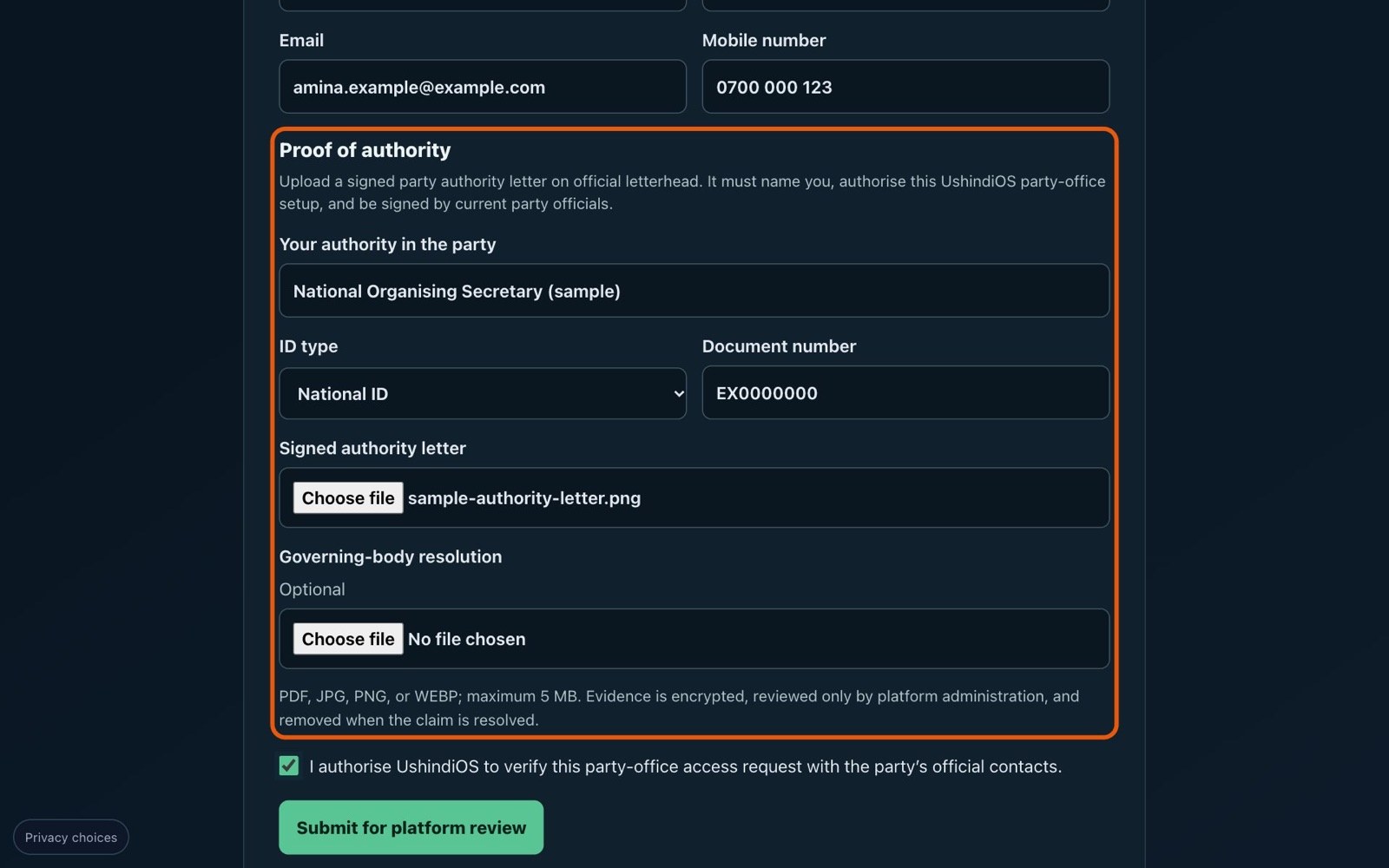
Your documents are encrypted, seen only by UshindiOS platform administration, and deleted once a decision is made.
Step 6: Submit your claim
Select Submit for platform review. You will see Claim submitted, with your claim reference, confirming that your request has gone to platform administration and that your invitation will come by SMS only if it is approved.
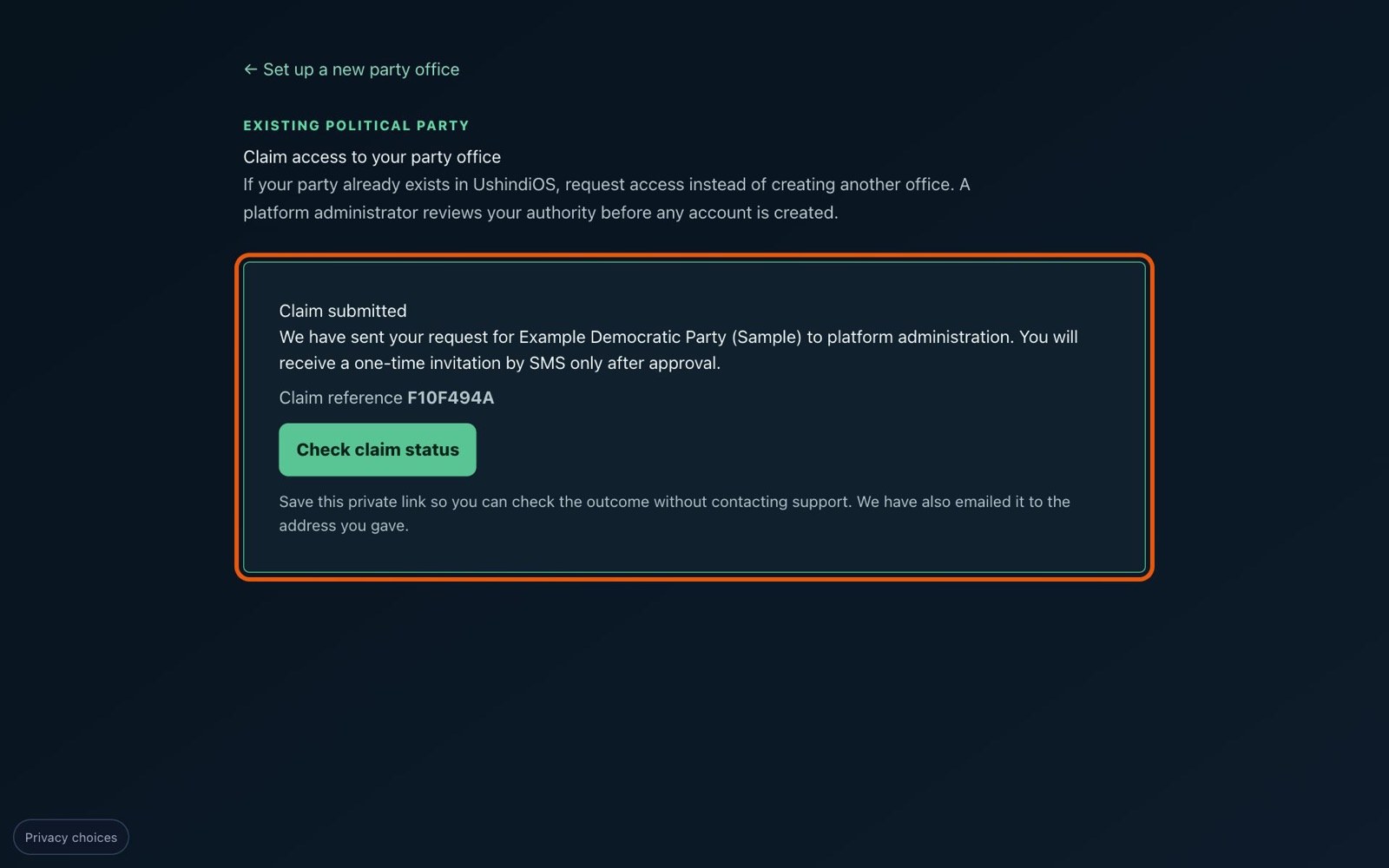
Save the "Check claim status" link. We also email it to you, with your claim reference, so you have a copy in your inbox. Keep it private.
Step 7: Check your claim status
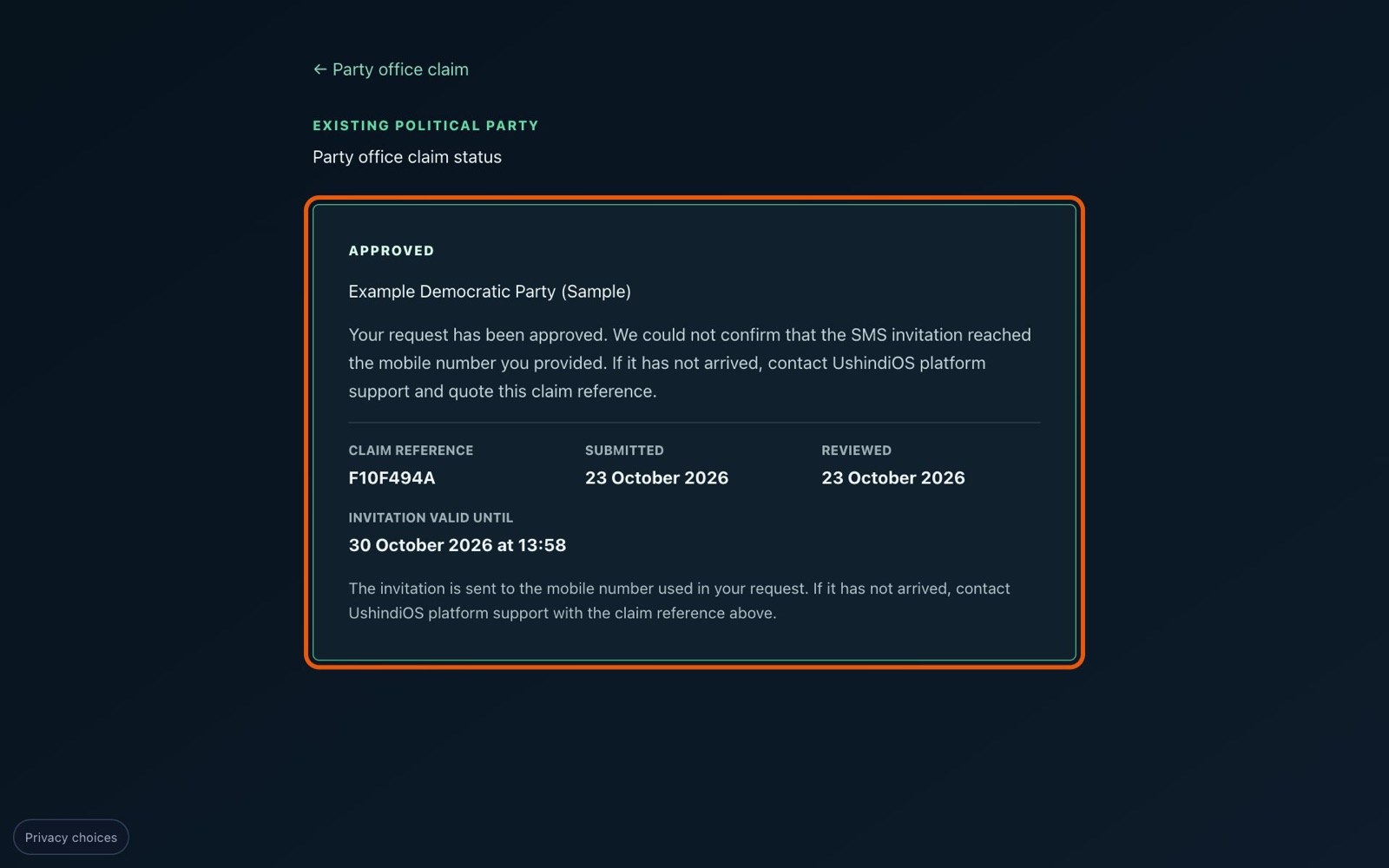
Open your saved link at any time. Your status page shows your party, where your claim stands, your claim reference and the date you submitted. No sign-in is needed, so keep the link private.
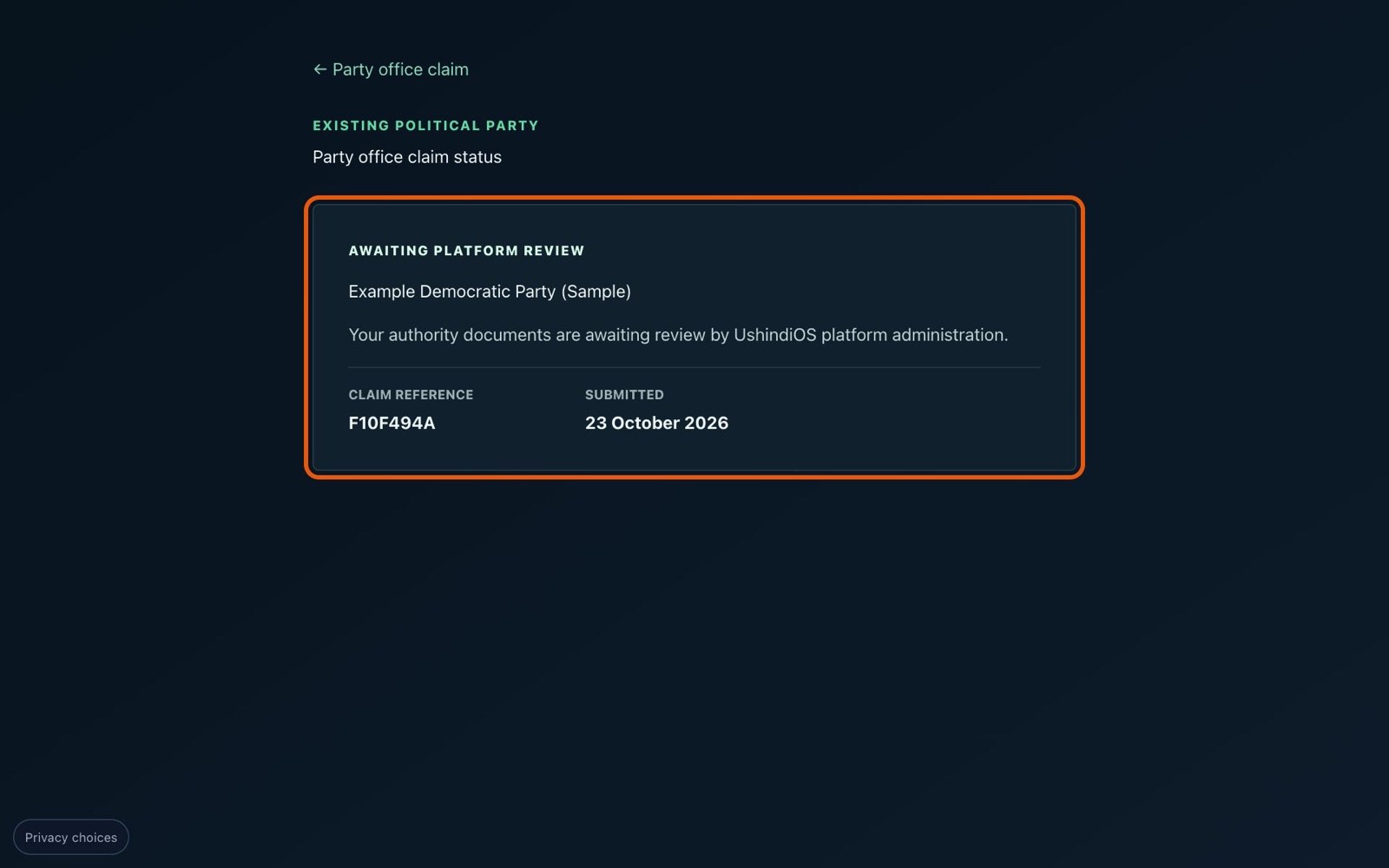
A claim is always in one of three states: Awaiting platform review, Approved or Not approved.
Tips for a smooth review
Reviewers approve claims they can confirm. These habits make that easier:
Match your details. Use the same name on the form as on your ID and in the authority letter.
Make the letter easy to check. A letter on current letterhead, signed by officials your party's secretariat will recognise, can be confirmed quickly. Including a phone number for the signing official helps.
Be specific about your role. "National Organising Secretary" tells the reviewer more than "official".
Use contact details you control. Your invitation can only reach the mobile number on your claim.
Submit once. If you made a mistake, contact support with your claim reference rather than sending a second claim. If someone else from your party has also applied, the reviewer sees both and checks with the party which official it has authorised.
Keep your status link private. Anyone who has it can see the status of your claim (though never your documents or contact details).
Part two: what happens behind the scenes
Submitting a claim does not give you access. Your request goes into a review queue that only UshindiOS platform administrators can see.
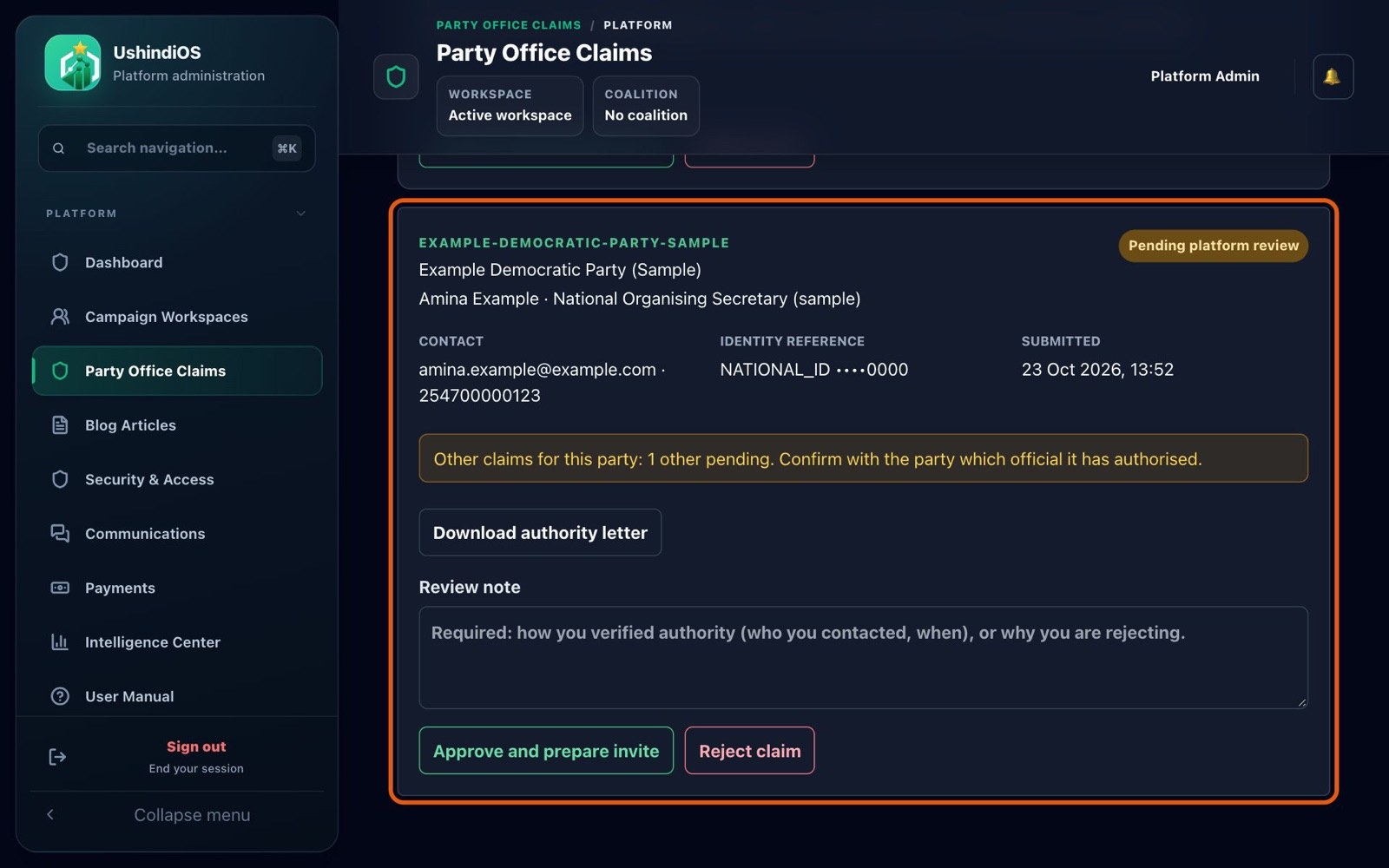
Reviewers are alerted by email when a new claim arrives. They see your party, your name and role, your contact details, a masked ID number and when you applied, and they can download your authority letter and resolution. If anyone else has also claimed your party, they are warned.
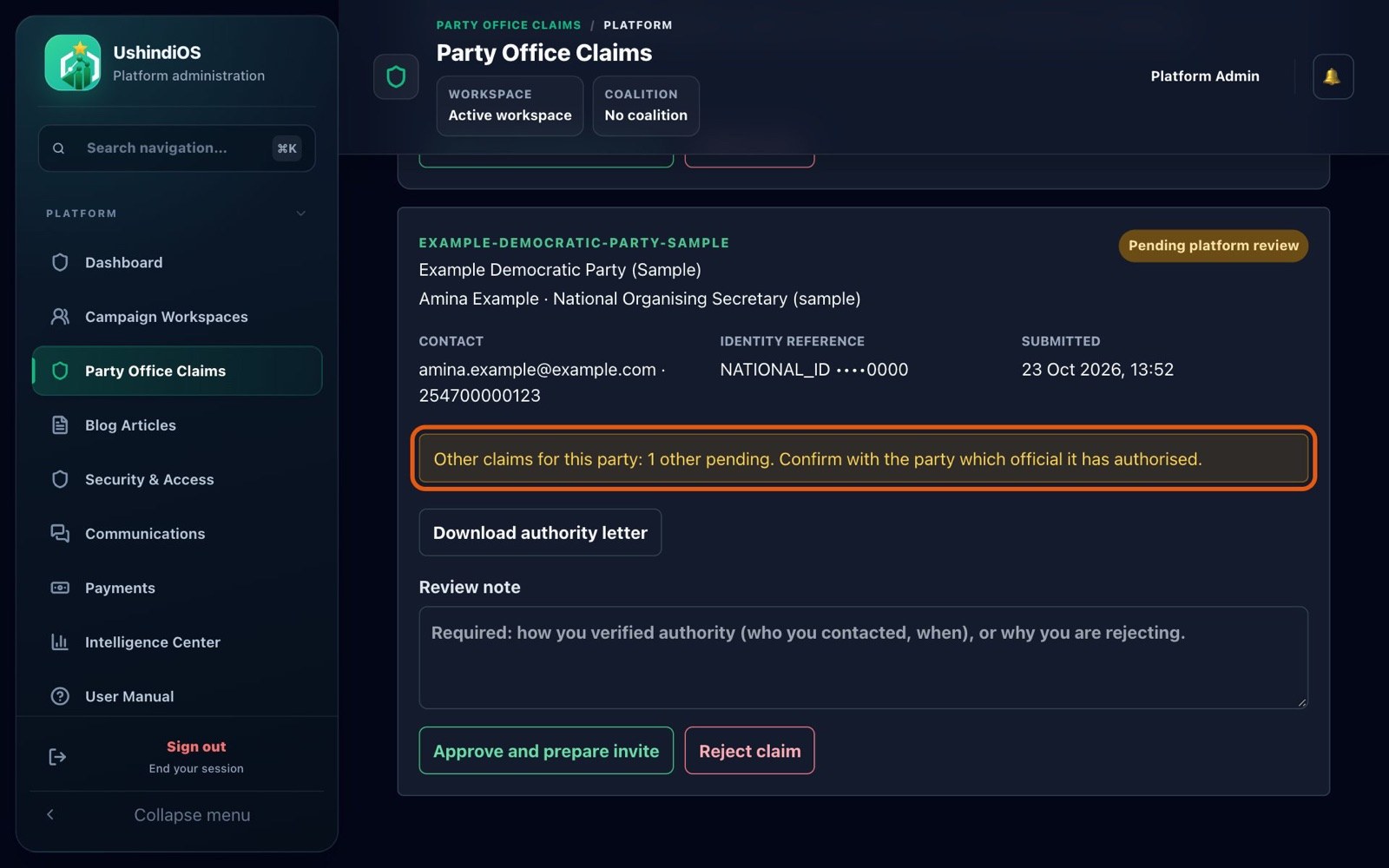
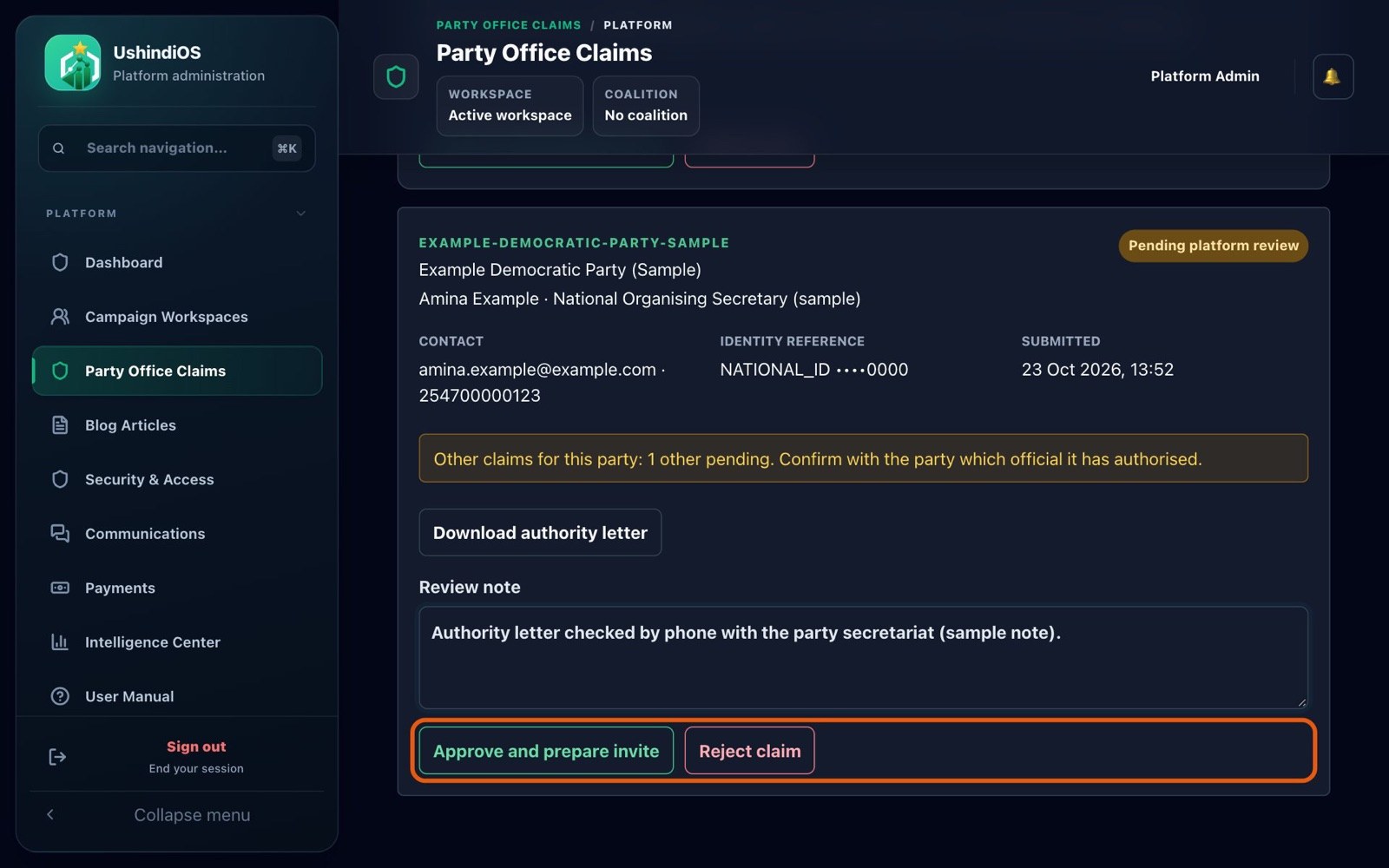
The reviewer is asked to check your letter against a contact they already know at your party, not just to trust the letter, and never to approve a claim just because a party name was chosen. They must write down how they checked before they can approve, and they confirm the approval before it goes through.
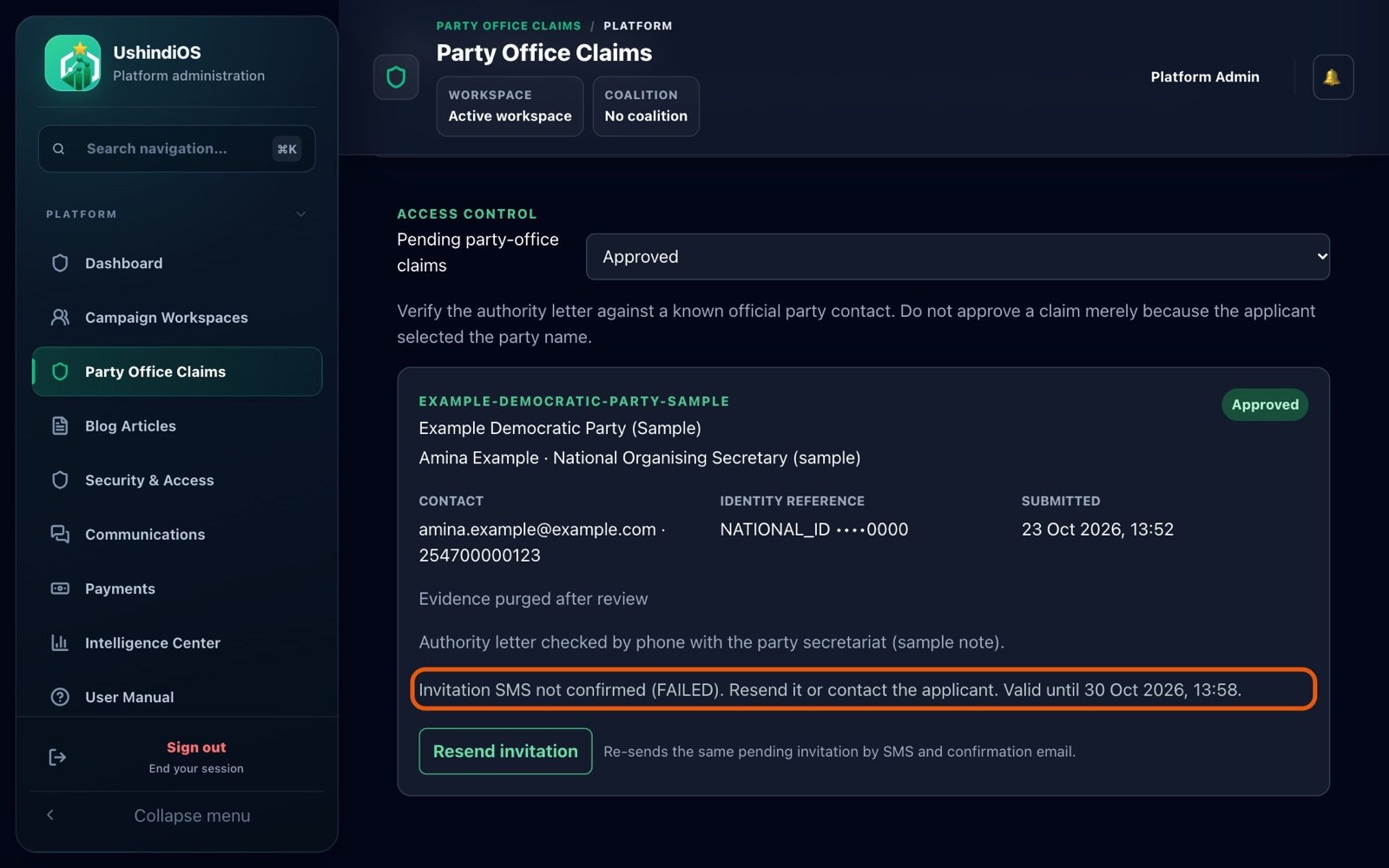
When a claim is approved, UshindiOS prepares your party's workspace and its national party campaign (or reuses them if they already exist), creates your administrator invitation, and deletes your uploaded documents. Every decision is recorded in the platform's audit log.
There is no fixed review time. Reviews are done by people, and they take as long as it takes to reach your party's contacts.
Part three: notifications and status updates
Here is what you can expect to receive.
When you submit: a confirmation on screen, and an email with your claim reference and your private status link.
If your claim is approved: an SMS invitation to the mobile number on your claim, with a one-time link that works for seven days, and an email confirming the approval. Your status page changes to Approved and shows exactly when your invitation expires. If the SMS could not be confirmed as sent, the page and the email say so and tell you to contact support.
If you have not used your invitation: a reminder SMS with the same link the day before it expires.
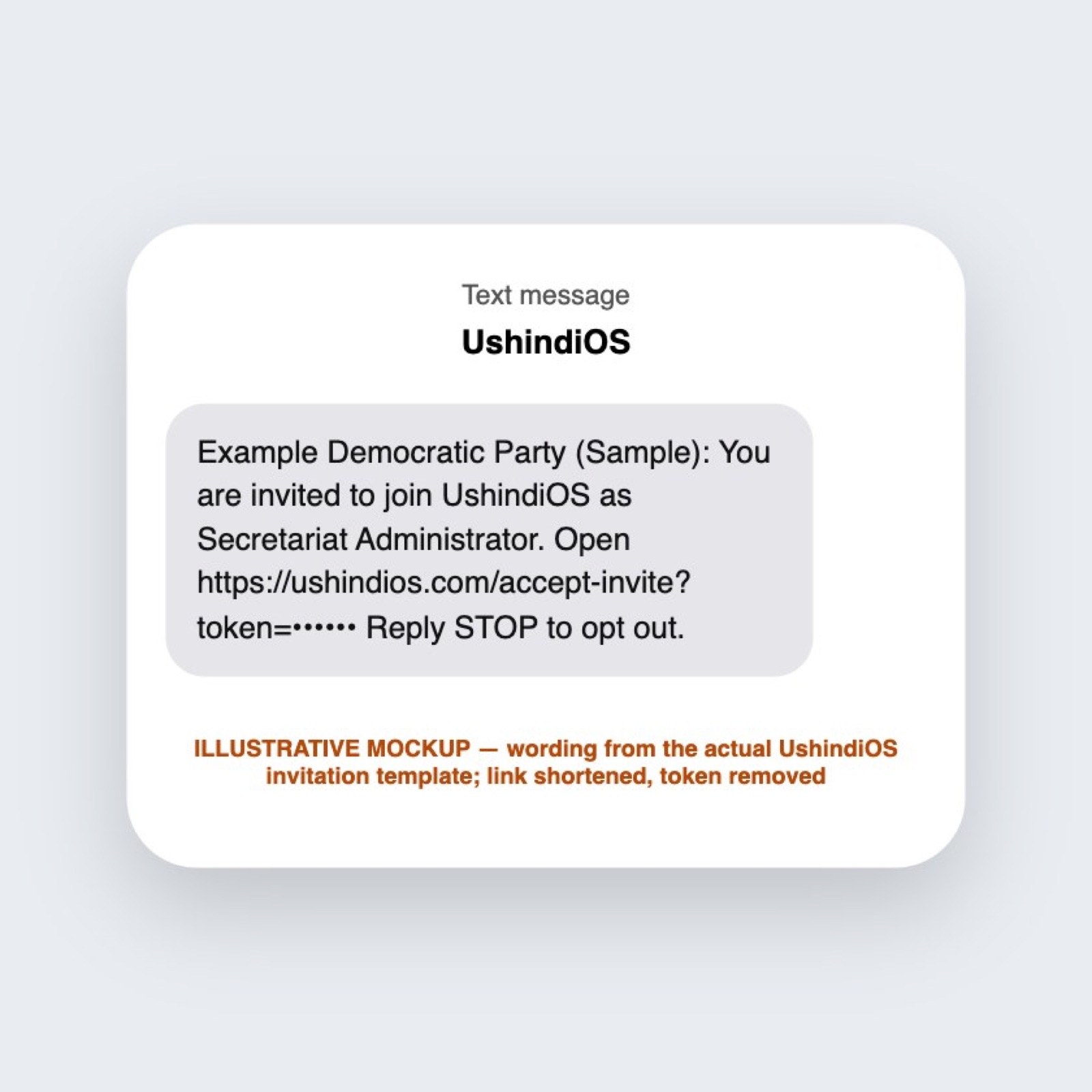
If your claim is not approved: an email, and your status page shows Not approved. It does not give the reason. Contact UshindiOS support and quote your claim reference.
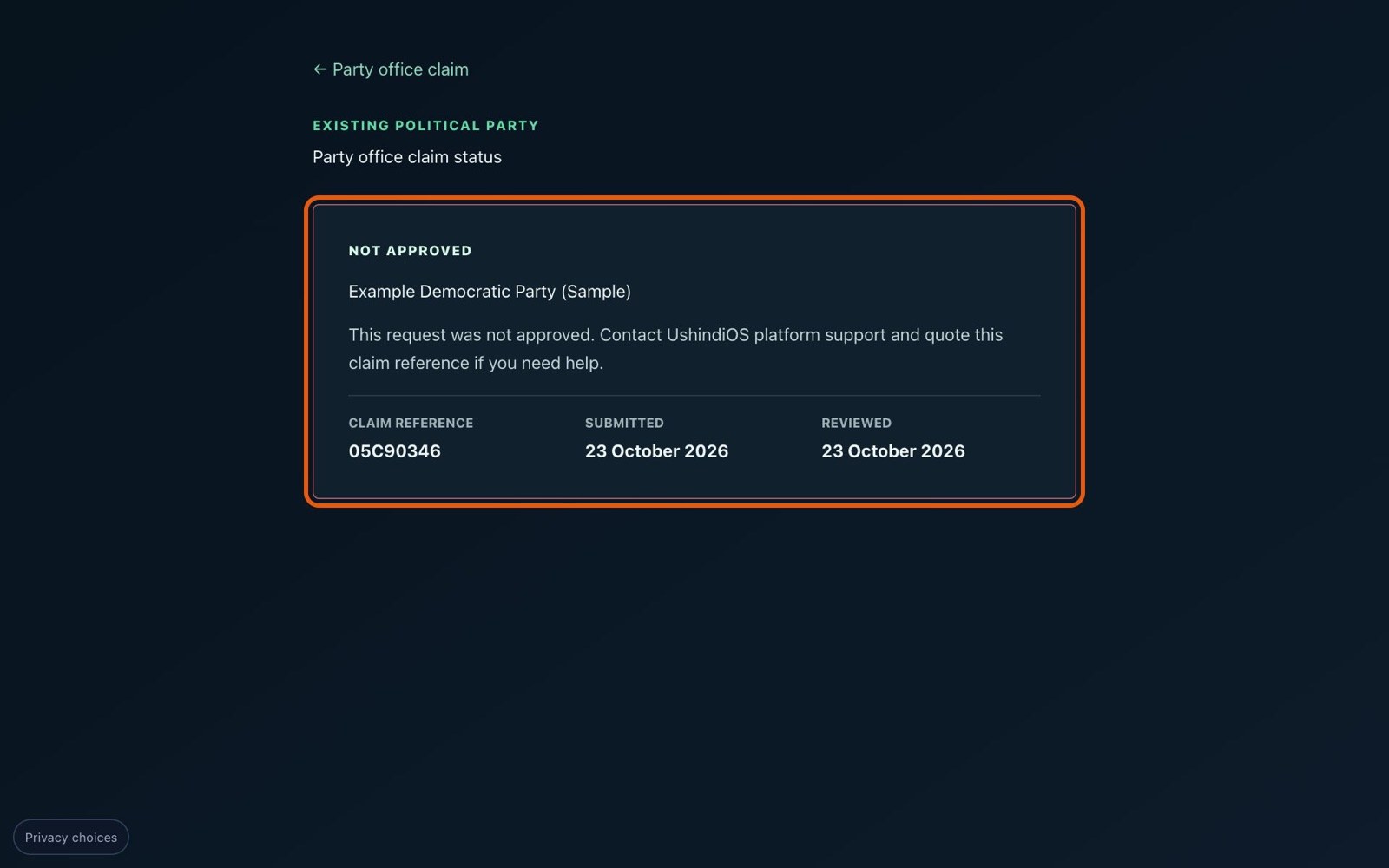
If the SMS doesn't arrive, or the link has expired, contact UshindiOS support with your claim reference. Support can resend a valid invitation or issue a new one. You do not need to claim again.
Part four: what happens after approval
Accept your invitation
Open the link in your SMS. You will see Complete your join request. Enter your first and last name, choose a username and a password of at least eight characters, and select Join Workspace.
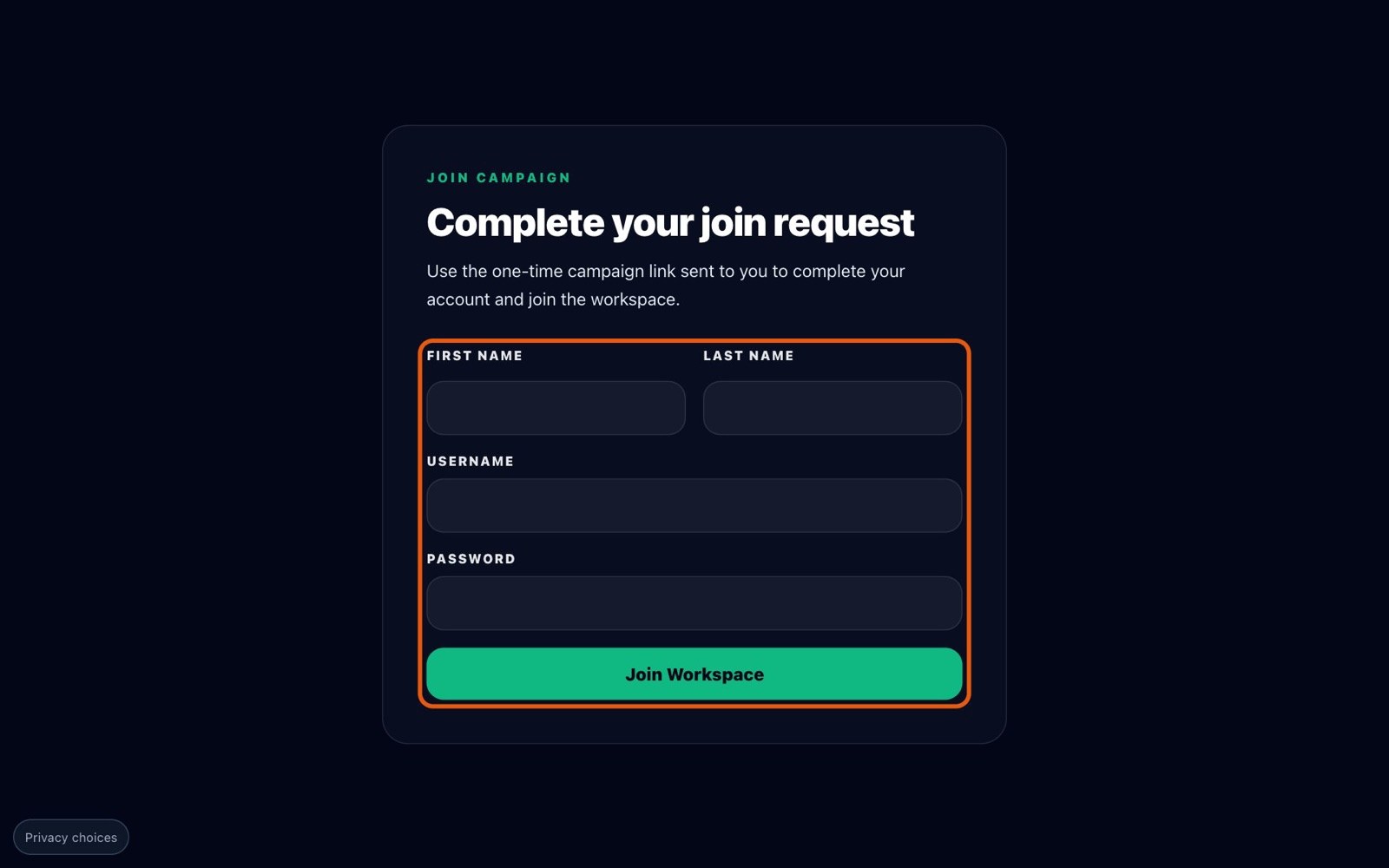
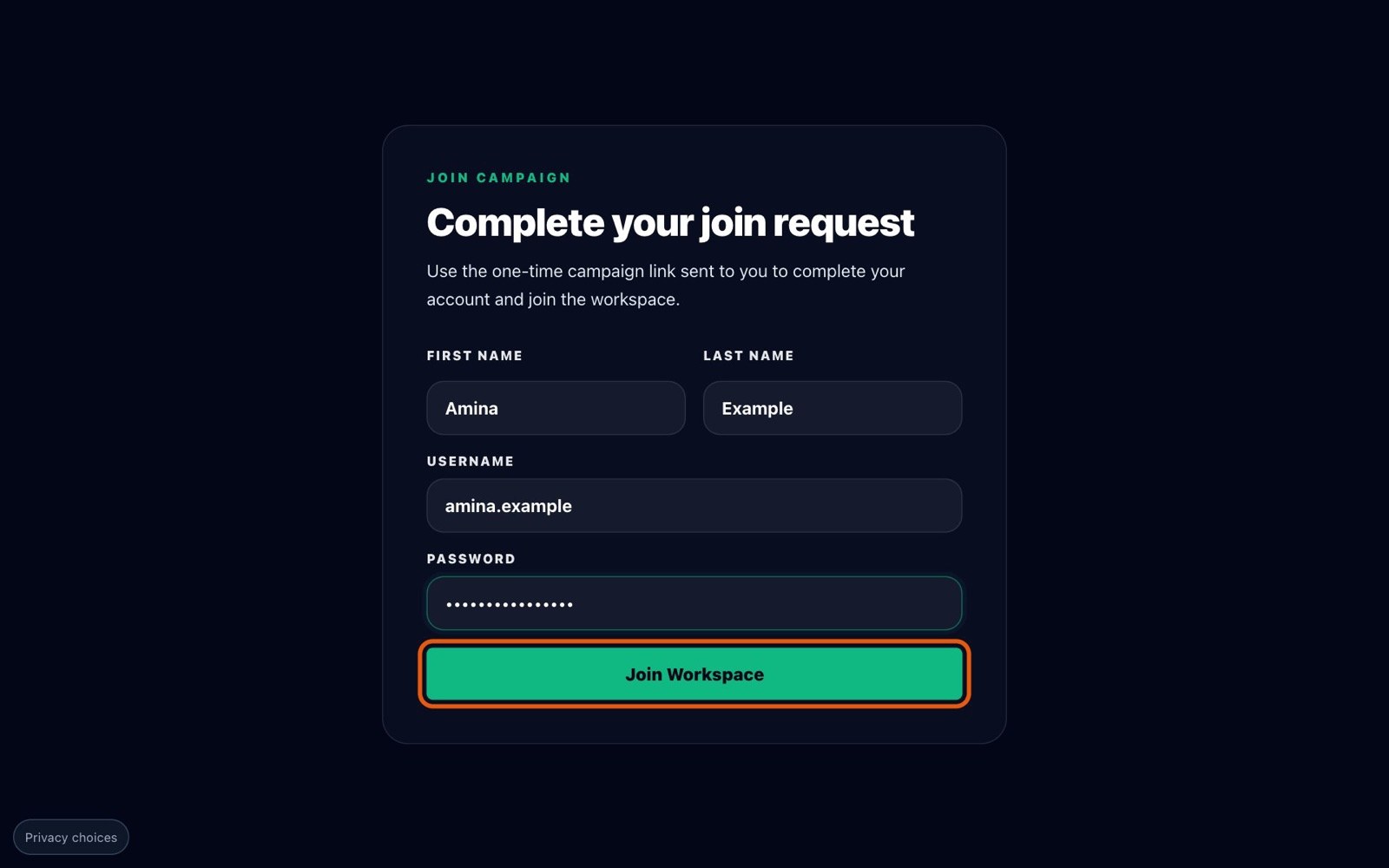
You will see "Invitation accepted. Account created successfully." and be taken to your party's sign-in page. Your claim status page now says your account has been created, with a link to sign in.
Sign in
Sign in with your new username and password. Depending on UshindiOS security settings, you may be asked for an extra verification step.
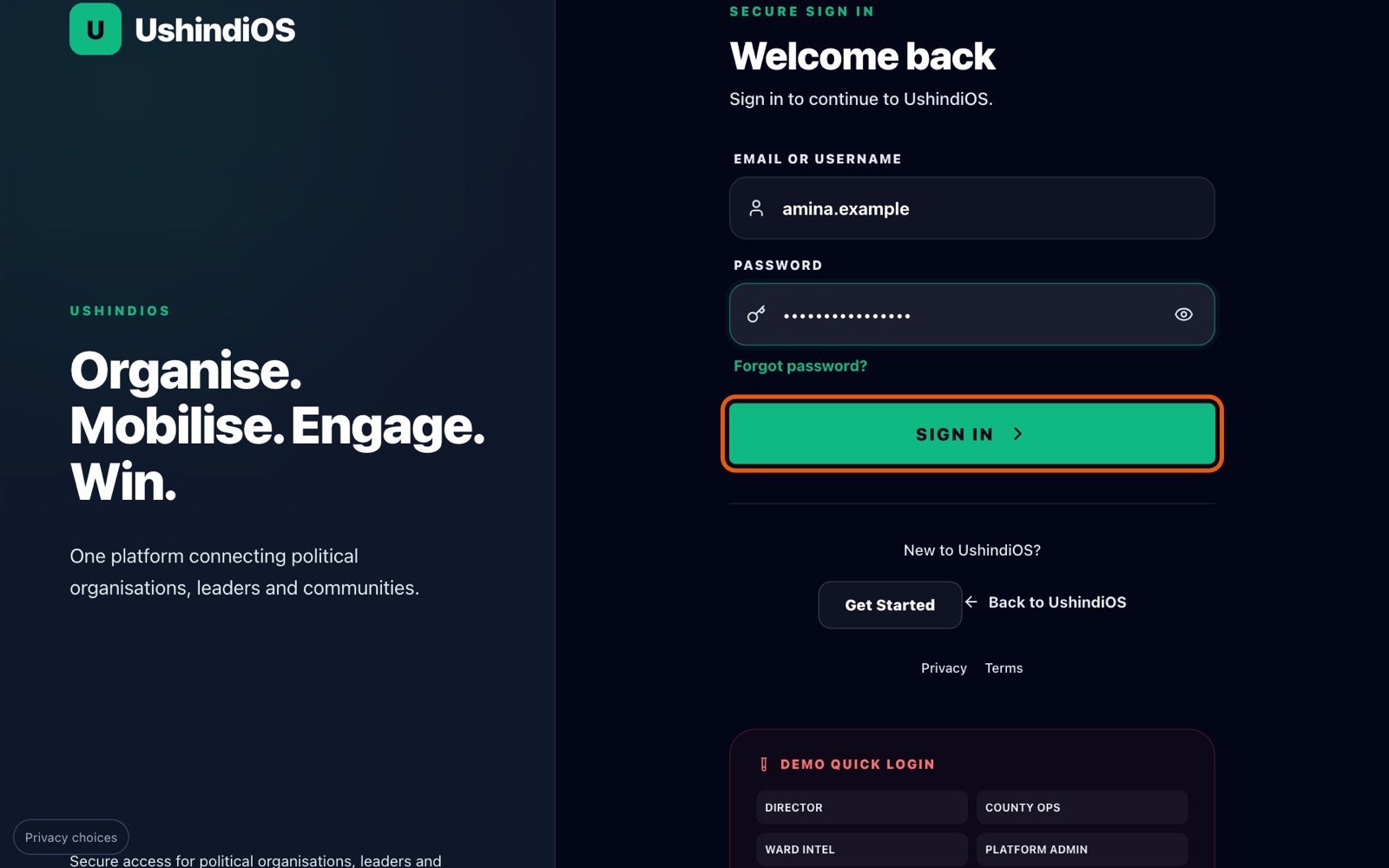
Your party workspace
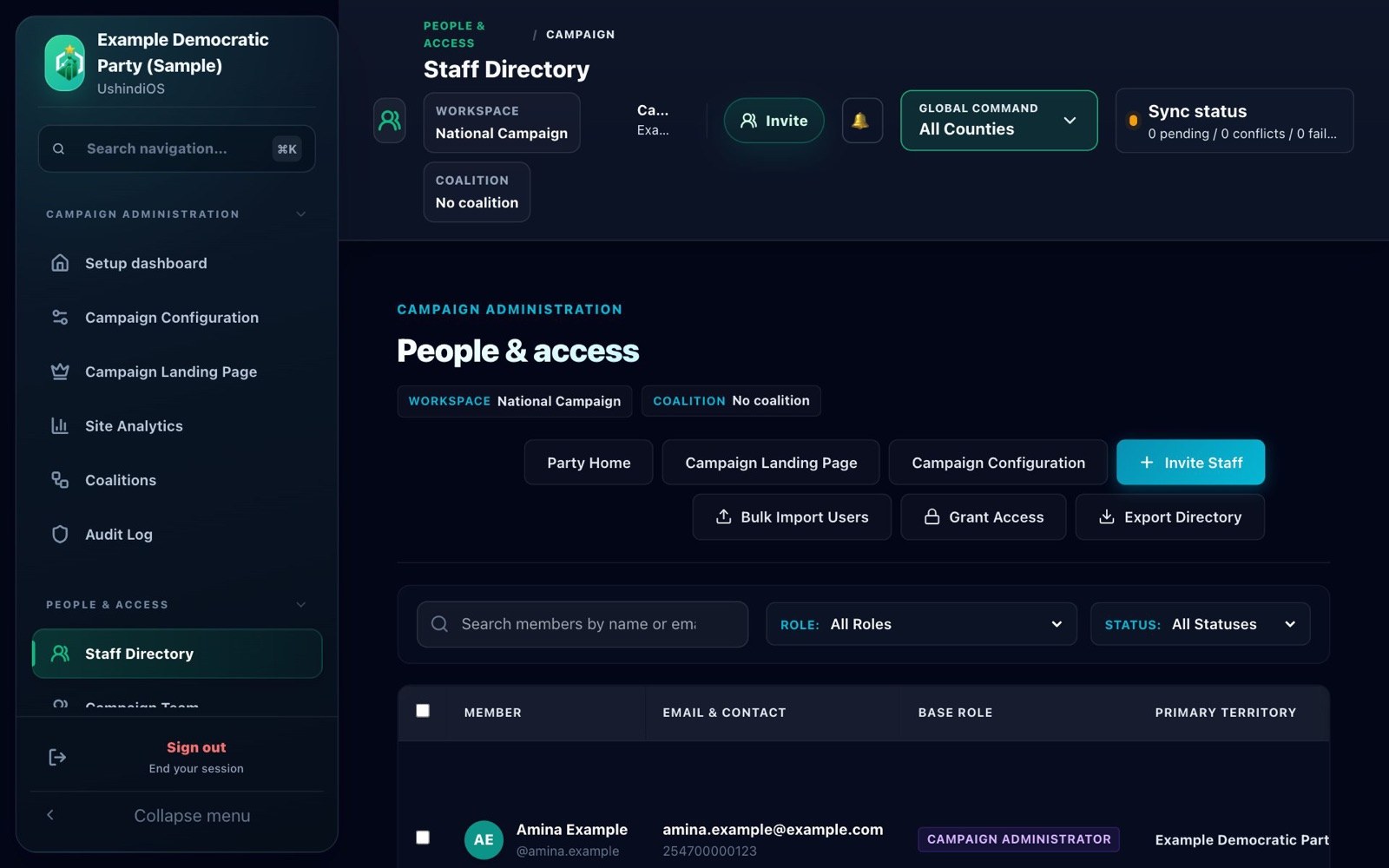
Your first screen is your party's People & access page, at your party's own web address, with you listed as the administrator.
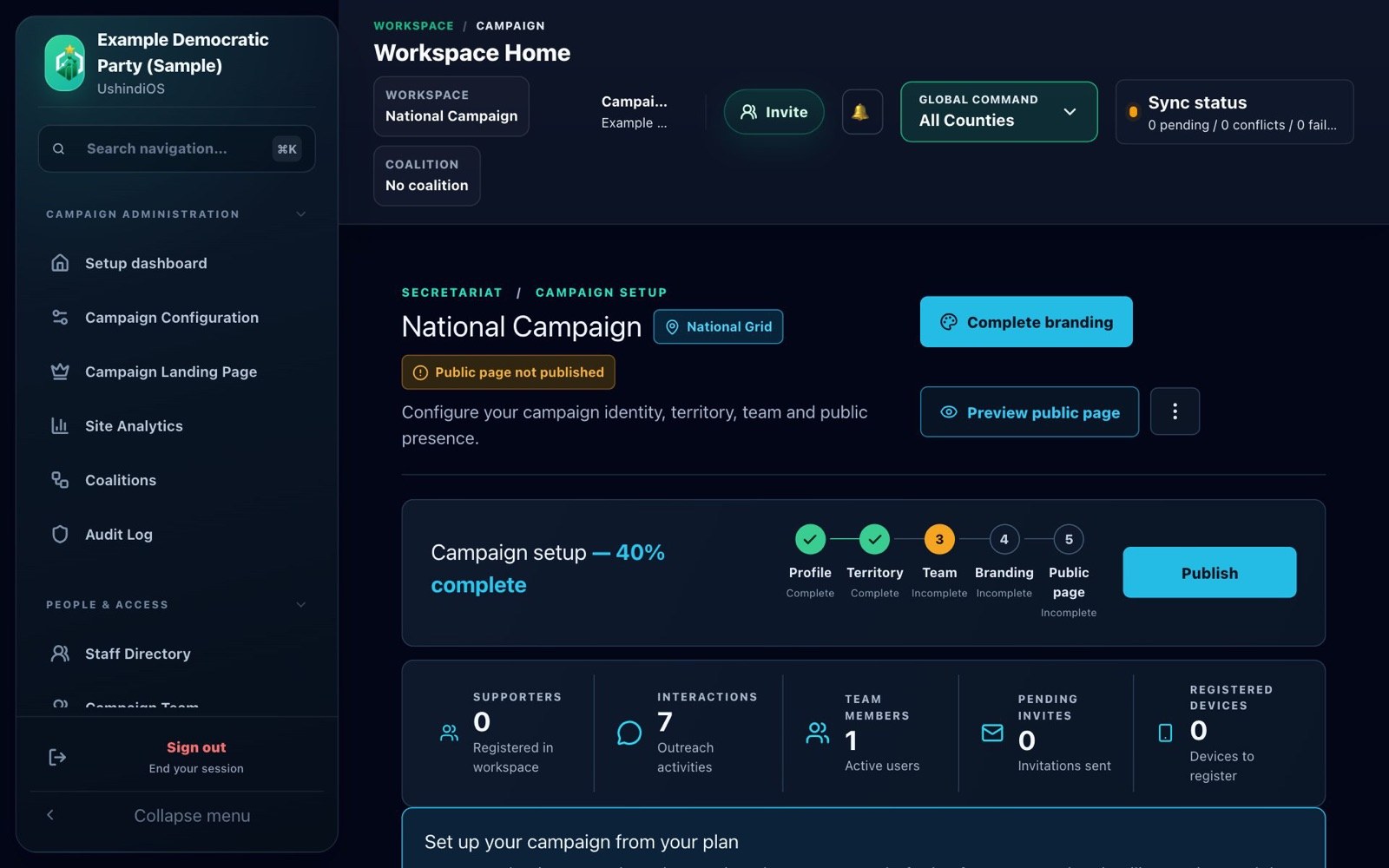
From the menu you can open Workspace Home. It shows your party's national campaign and a setup checklist: profile and territory are done for you, and team, branding and public page are yours to complete.
The Setup dashboard shows your readiness, how many staff are active, which positions are filled and your territory.
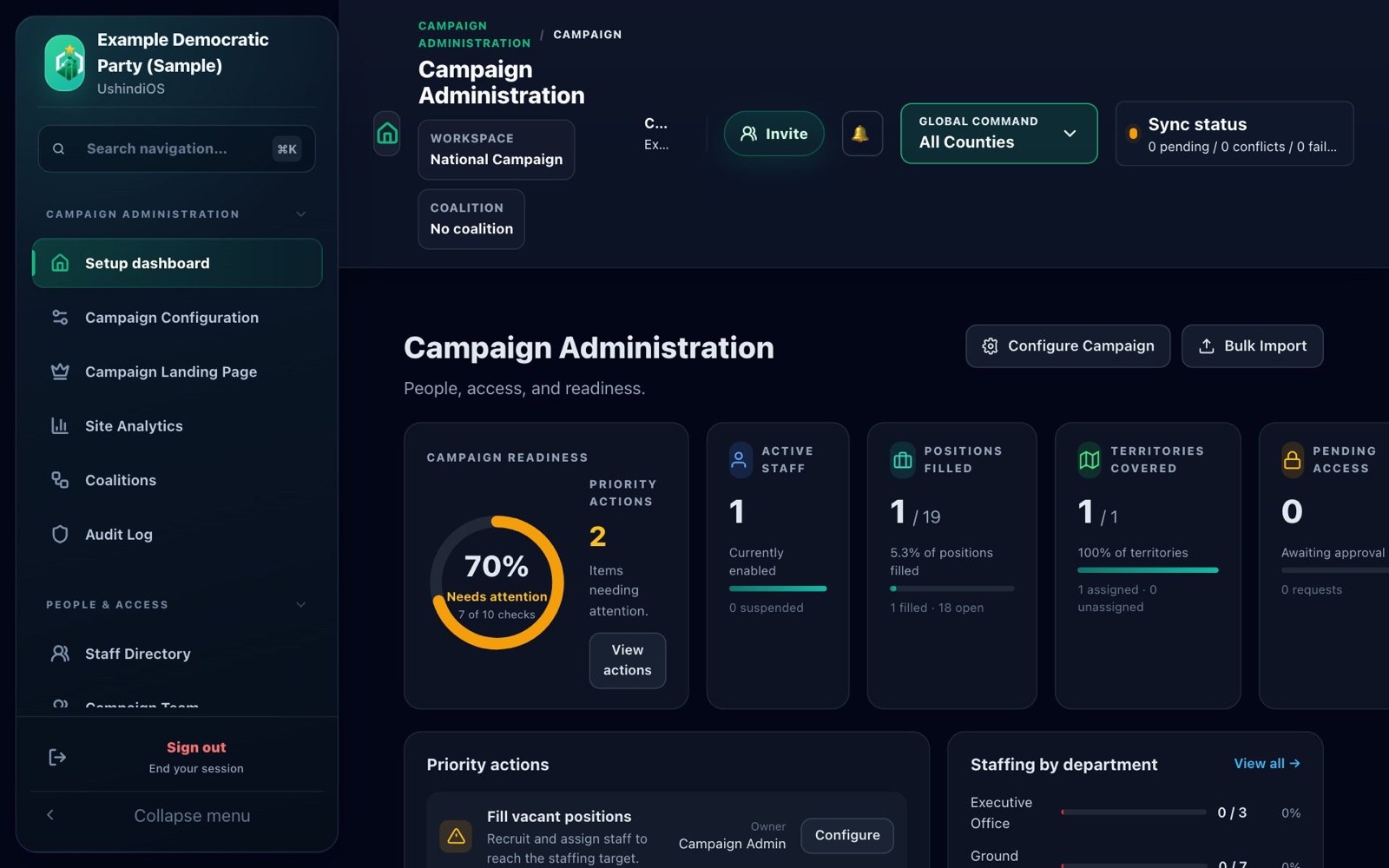
Good first things to do:
Invite your colleagues from People & access, each with a role and an area.
Complete your branding and publish your public page.
Fill the key positions shown on the setup dashboard.
Keep your workspace secure from day one. Choose a strong password you don't use anywhere else, and never share your account. Give each colleague their own invitation instead, so every action in the workspace can be traced to the person who took it.
Your workspace starts with one campaign: the party's national campaign. Creating separate campaigns for individual seats is not yet a step you can do yourself. Contact UshindiOS when you are ready, and we will help you set them up. Access to paid features depends on your party's UshindiOS licence, which is separate from approving your claim.
Frequently asked questions
Who can claim a political party? An official who is authorised by the party to set it up on UshindiOS, and who can provide a signed authority letter from current party officials.
Do I need an account before claiming? No. Your account is created only after your claim is approved, when you accept your invitation.
What documents do I need? A signed authority letter on the party's letterhead (required), a governing-body resolution (optional), and your national ID or passport number. Files can be PDF, JPG, PNG or WEBP, up to 5 MB each.
Can more than one person claim the same party? Until a party is set up, more than one person can apply. The reviewer sees every claim for the party and checks with the party which official it has authorised. Once a party has an administrator (or an approved invitation waiting to be used), new claims are turned down: ask the party's administrator to invite you instead.
How long does approval take? There is no fixed time. Each claim is checked by a person, and that includes contacting your party.
How do I check my claim status? Open the private status link from your confirmation or your email. If you lost it, fill in the claim form again with the same email address: we will email the link to that address again.
What happens if my claim is rejected? You will get an email, and your status page will show "Not approved". Contact UshindiOS support with your claim reference to find out more. You can submit a new claim with better evidence; it will be reviewed as a new request.
What if I do not receive an invitation? Check that the mobile number on your claim is correct, then contact UshindiOS support with your claim reference. Support can resend your invitation.
What happens when an invitation expires? You get a reminder SMS the day before. After seven days the link stops working and your status page tells you so. Contact UshindiOS support with your claim reference and they can issue a new one.
Can I invite other party officials? Yes. Once you are in, invite colleagues from People & access, each with a role and an area. They get their own invitations.
Can I create a campaign immediately? Your party starts with its national party campaign. Campaigns for individual seats are not yet self-service; contact UshindiOS to set them up.
Is claiming a party the same as legally registering a political party? No. Party registration is done with the Office of the Registrar of Political Parties (ORPP). Claiming only gives your party's authorised official administrator access to its UshindiOS workspace.
Ready to get started?
Find your political party on UshindiOS →
Already submitted a claim? Open the private status link you saved when you submitted. For your security, claim status can only be opened from that link.